How to work with Pine Editor
Pine Editor is the main tool for working with Pine Script®. With it, you can create, edit, and test your trading strategies, indicators, and libraries.
To open it, click the "Pine" icon on the right toolbar.
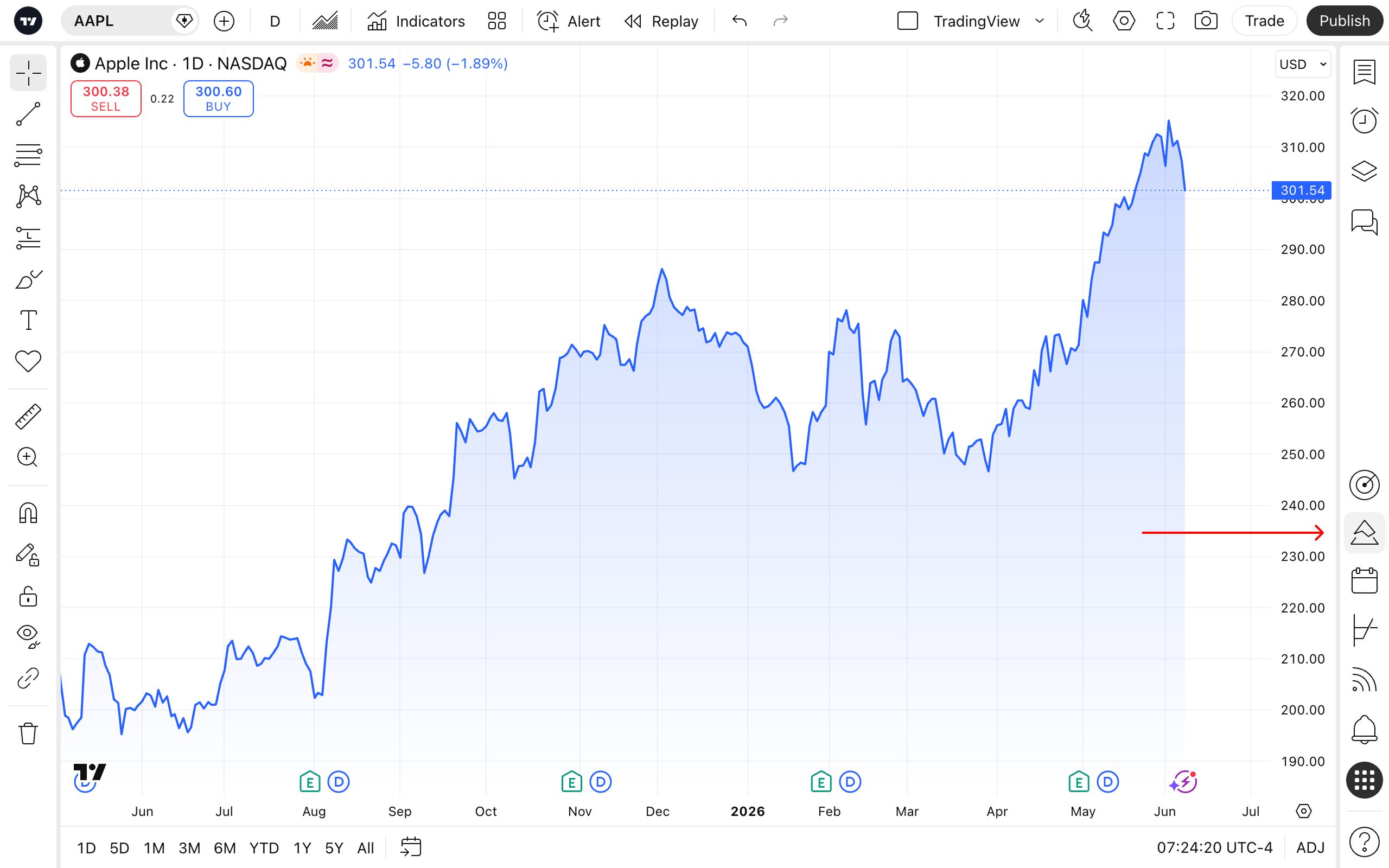
The editor automatically saves its state. If you close it, all open scripts and unsaved changes will be restored the next time you launch the editor.
Display modes
By default, Pine Editor opens as a floating panel. You can move it around the screen and resize it so it doesn’t block important chart elements.
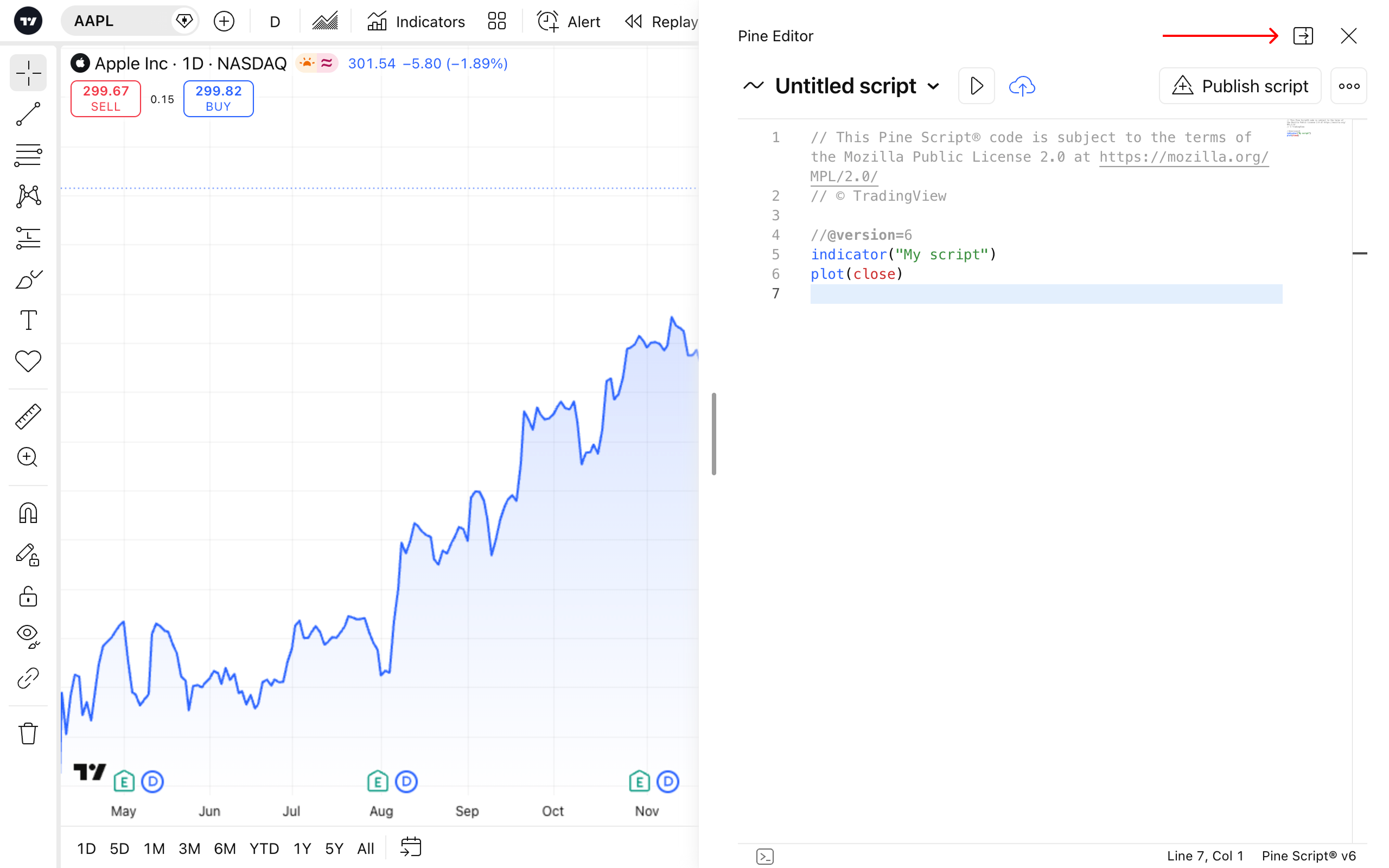
Other modes:
- Docked mode: Click the icon to dock the editor to the right side of the chart. This mode provides a vertical layout, allowing you to edit code while simultaneously viewing the chart, the strategy report, or other tabs such as Strategy Report and Replay Trading
- Separate browser window: Use detach mode to open the Pine Editor in a new window or tab and place it alongside the chart as needed
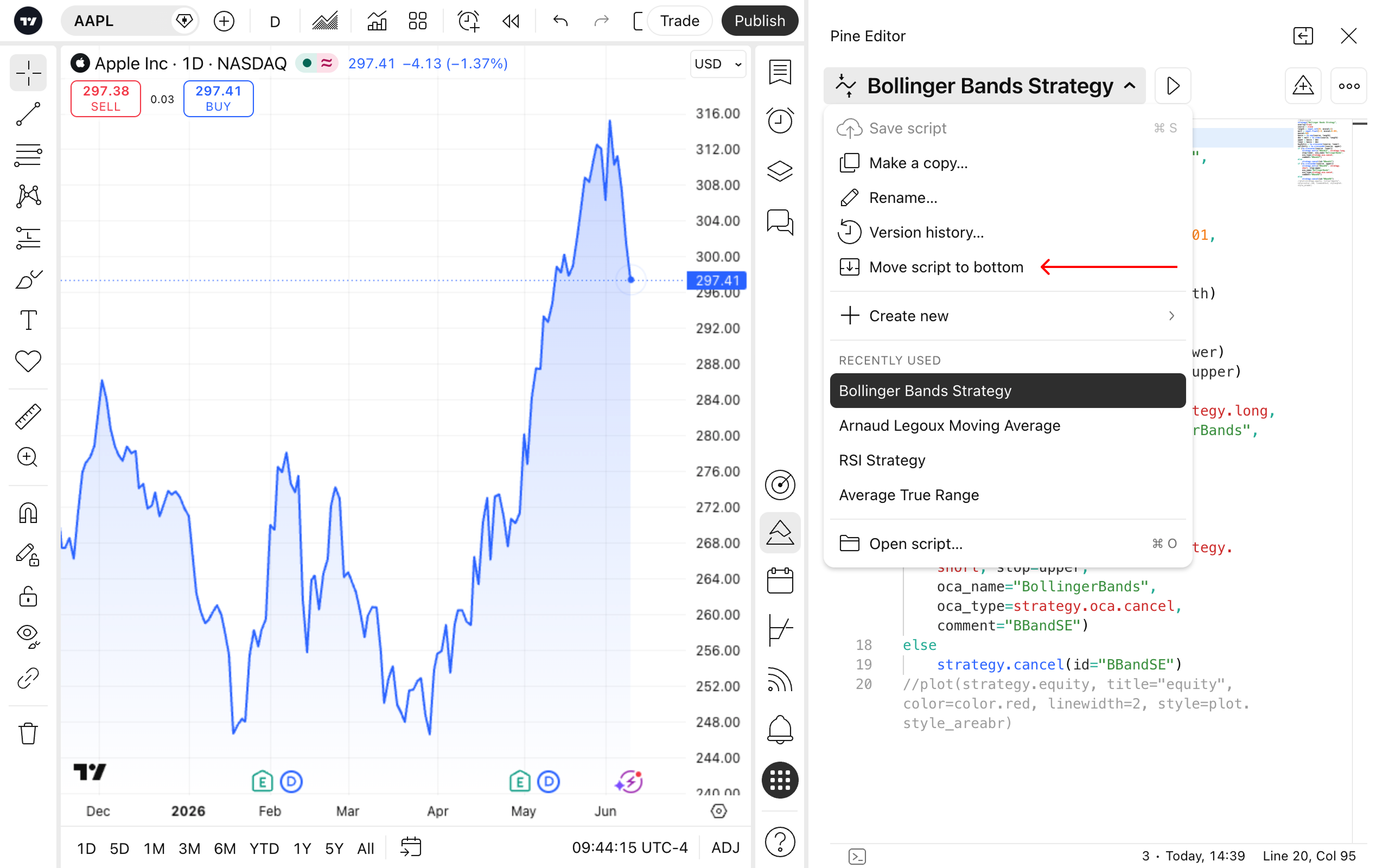
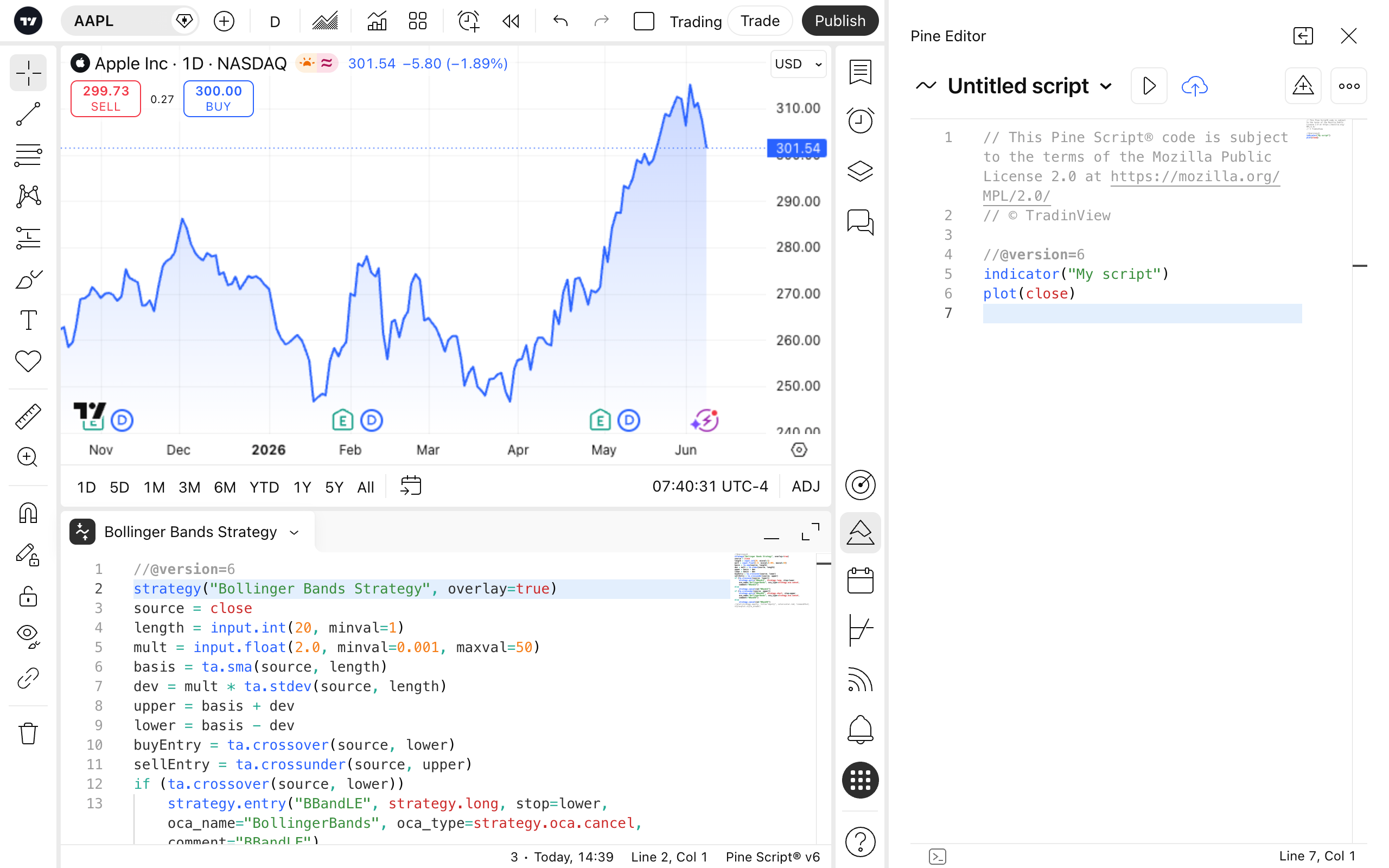
- Move to bottom: Use the Move to bottom option to place the Pine Editor at the bottom of the chart layout. This provides a horizontal workspace that may be more convenient when working with longer scripts while keeping the chart visible above the editor. Note that some features available in the standard Pine Editor layout may not be available in the bottom panel version, so functionality can be slightly limited depending on the tools you use.
Word wrap
To enable it:
- Select checkbox 'Use word wrap by default' in Editor settings
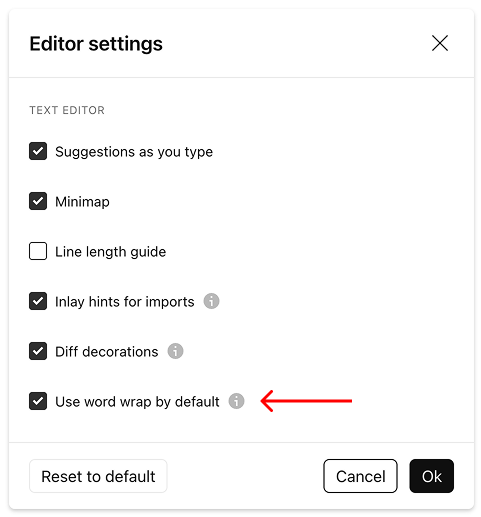
Alternatively:
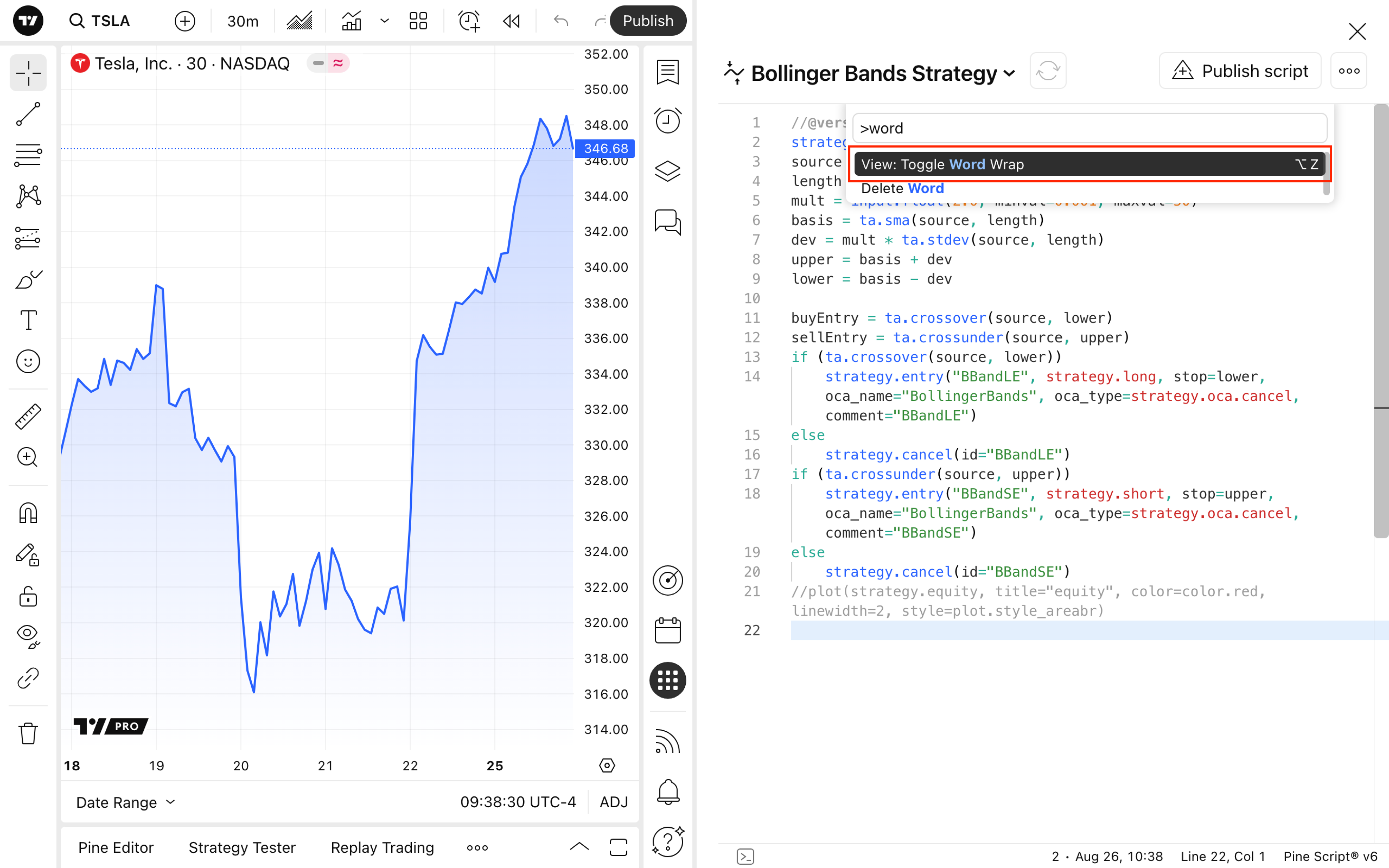
- Press F1 to open the Command Palette
- Type "Word wrap" and select the command
Or you can press Alt + Z for Windows or Option + Z for macOS.
Font size
To change the font size:
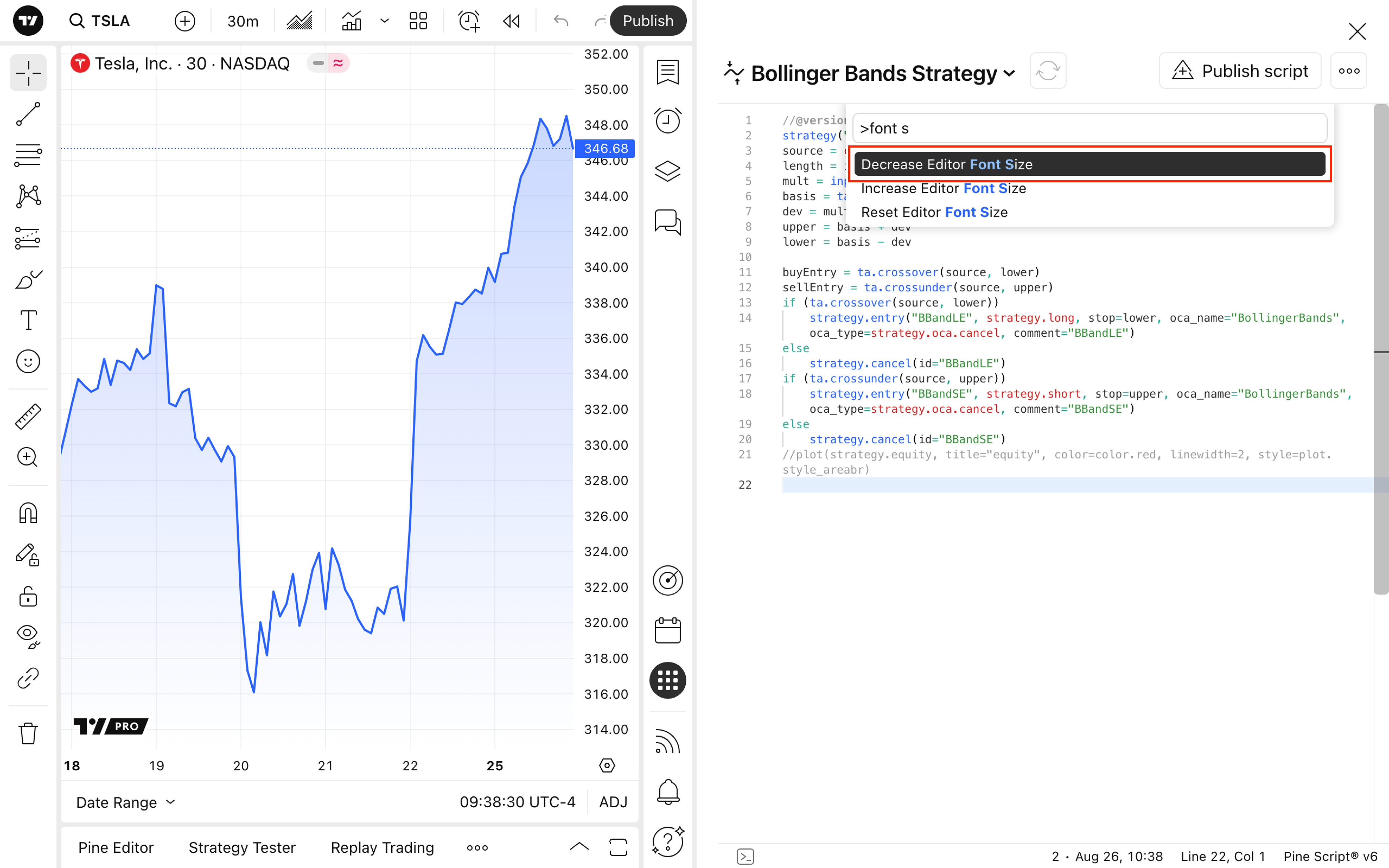
- Press F1 to open the Command Palette
- Type “Font Size” and select the necessary option: Increase Editor Font Size, Decrease Editor Font Size, or Reset Editor Font Size
Tools and resources
Script actions
- Add to the chart: Apply the current script to your chart for testing or visualization
- Publish script: Share your script with the community
Working with files
Click the script name to:
- Save script
- Make a copy
- Rename
- Access Version history
- Create new iIndicator, strategy, or library
- Open script
- Choose recently used scripts
Additional tools
In the three-dot menu you can find:
Editor settings
- Suggestions as you type: Enable autocomplete as you type
- Minimap: Code overview for quick navigation
- Line length guide: A vertical line to control line length
- Inlay hints for imports: Show import aliases and loading status hints
- Diff decorations: Display unsafe changes
You can Reset to default to restore default settings or press OK to apply changes
Open editor
- New window: Open the editor in a separate browser window
- New tab: Open the editor in a new browser tab
Developer tools
- Profiler mode: Profiling mode for performance analysis
- Pine logs: View execution logs
Other resources
- Release notes: Access a list of updates and changes
- Help: Access documentation and external resources
Also read: