How to use Long and Short Position drawing tools?
This feature lets you estimate how an order will go if you go long or short, shows the Profit & Loss (P&L) and estimates risk and closing account balance when the price reaches your profit target or stop loss levels.
You can practice placing orders and seeing results without actually having to place the orders — get confident and knowledgeable before risking real money in the markets.
Calculate your Position Size and Account Balance
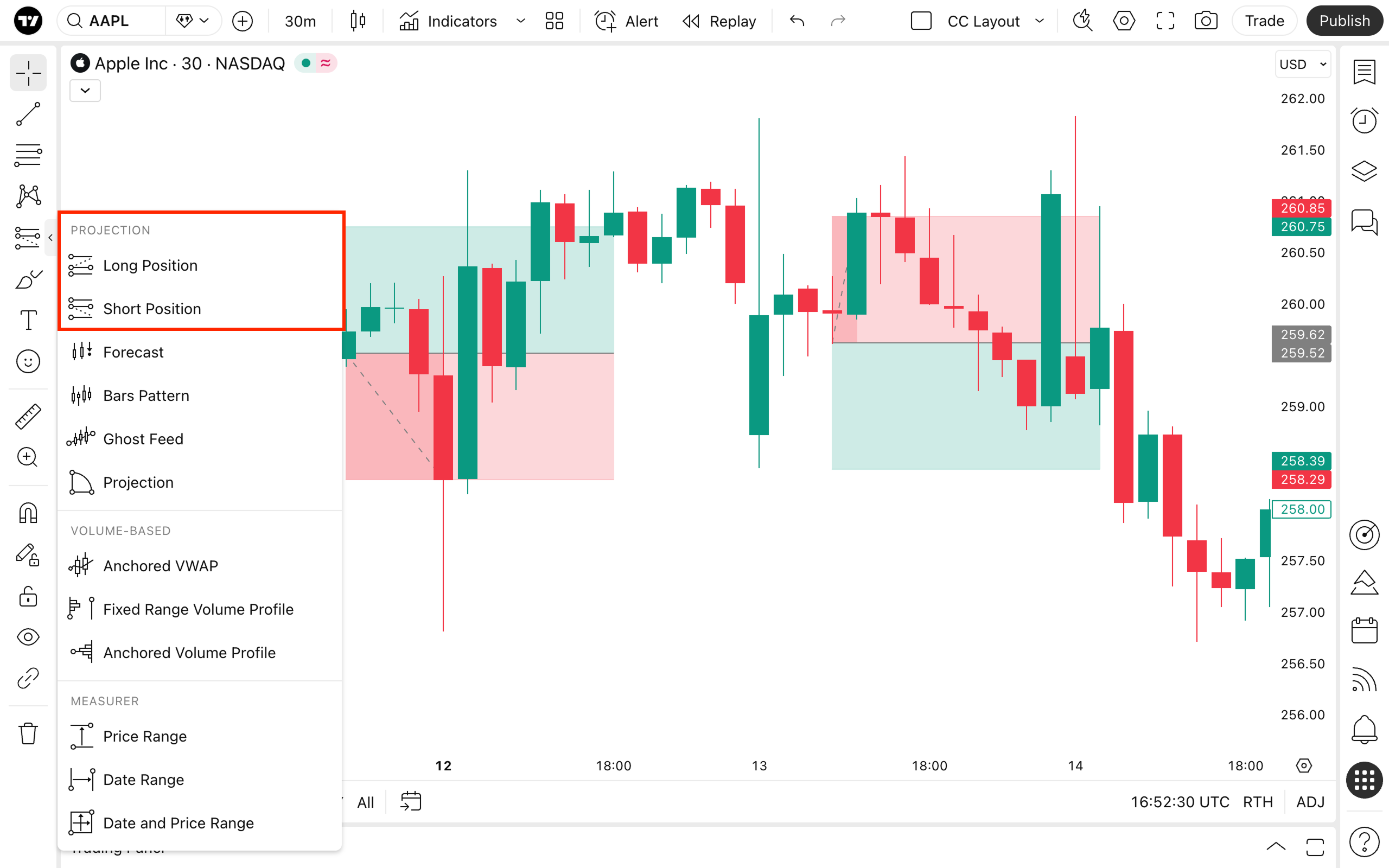
1. Create a Long Position or Short Position drawing.
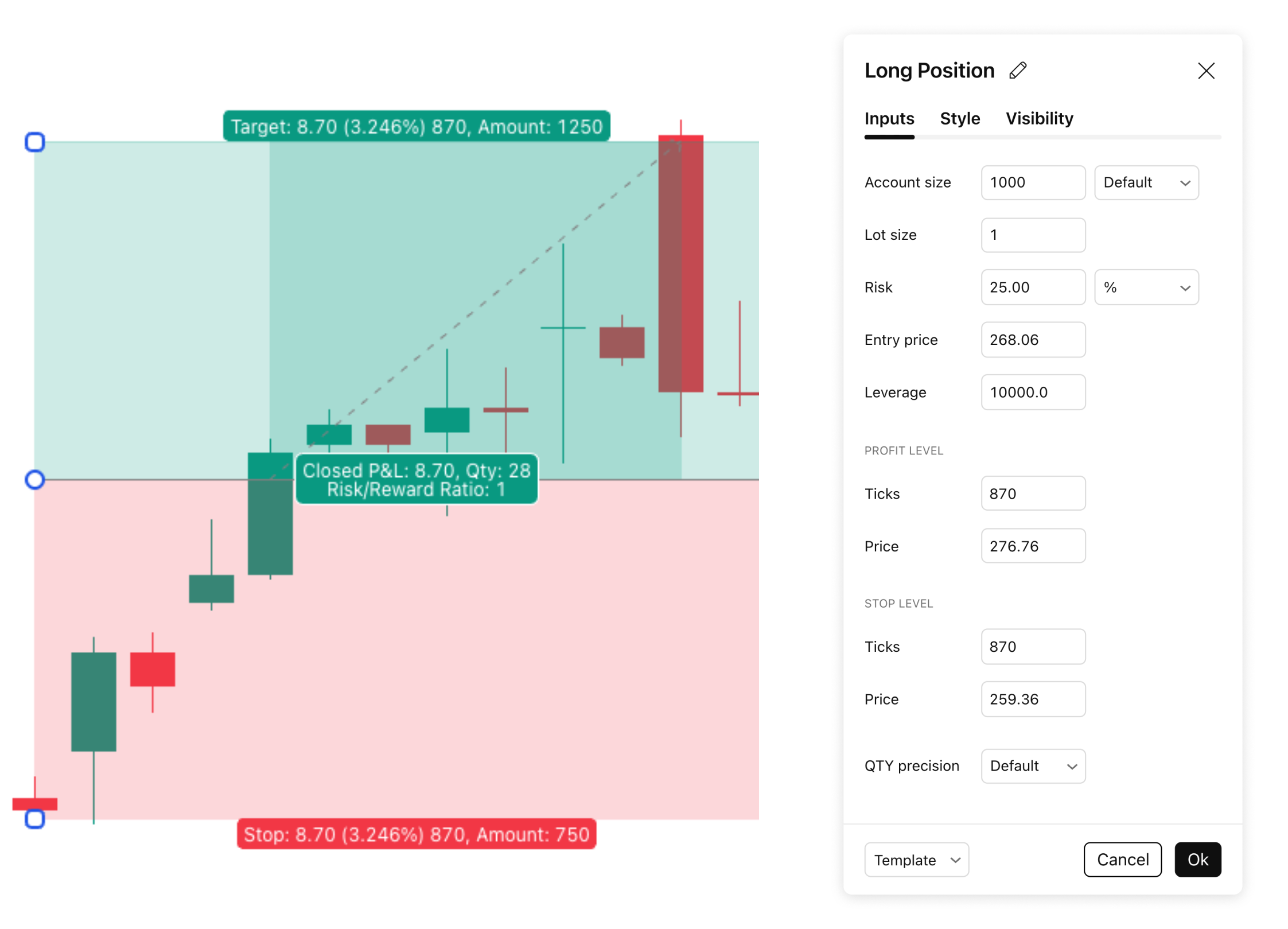
2. In the properties dialog of the instrument, enter your initial account size in the default or selected currency, and the risk amount either in absolute numbers or as a % of your account size. You can also enter the Lot size and set Leverage, change the Entry price, Profit or Stop level, and QTY precision if needed. Click OK to accept.
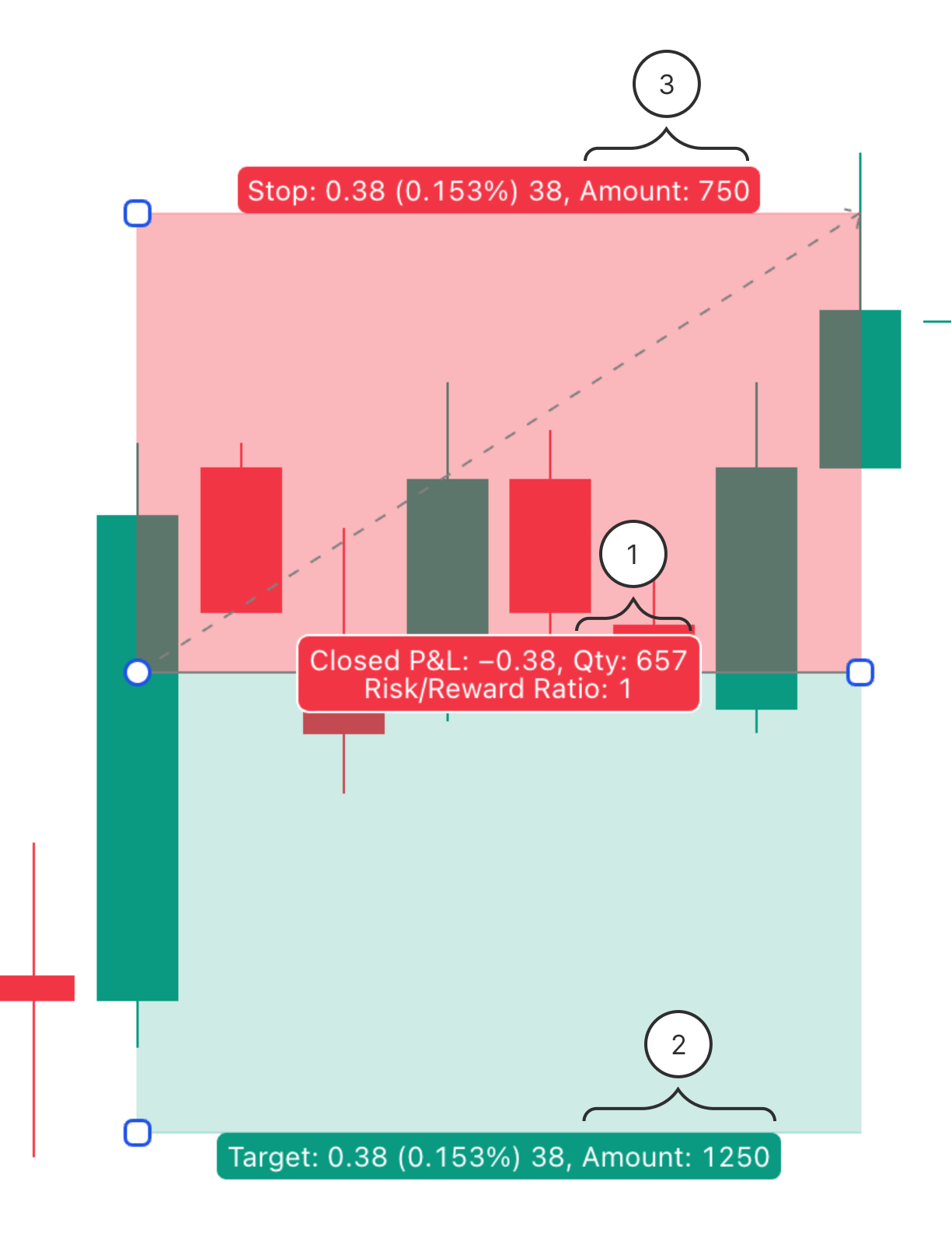
3. Drawing tool tags will show you position size (1) and account balance when positions are closed after reaching either the Take Profit (2) or the Stop Loss (3) level.
4. And you can see more useful information on Long and Short Position drawing tools, such as Target and Stop levels (in price, percentage, and ticks accordingly), Profit & Loss, quantity (Qty), Risk/Reward Ratio, and P&L.
How are the Position Size, Account Balance, Target and Stop levels, Risk/Reward Ratio, and P&L calculated?
Long Position:
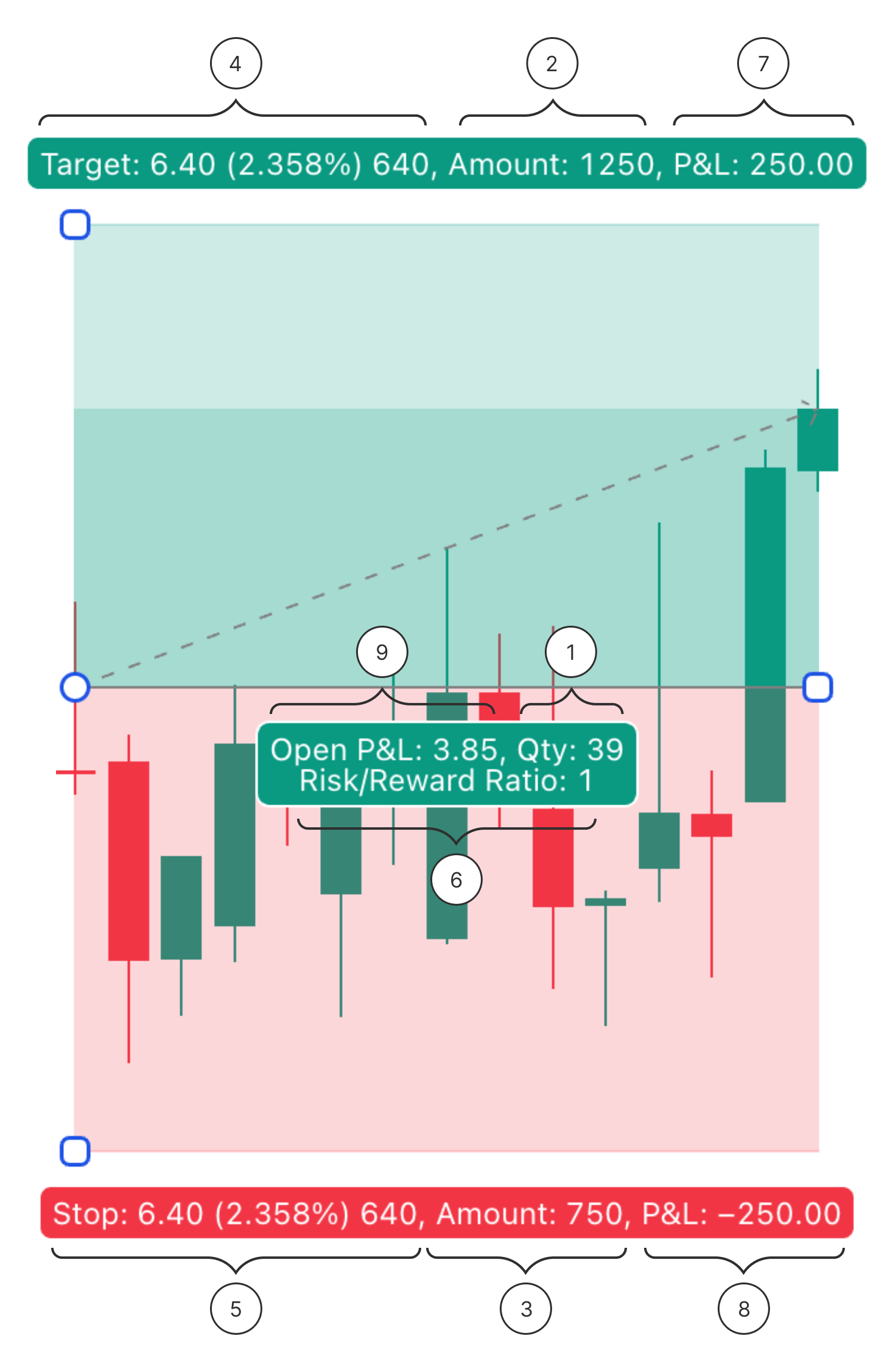
| 1 | Position Size | Qty = min(QtyRisk, QtyLvg), where: QtyRisk = (RiskSize / ((EntryPrice – StopPrice) * Point value)) / Lot size QtyLvg = (Account size * Leverage / EntryPrice) * Point value / Lot size |
| 2 | Account Balance when the position is closed after reaching the Take Profit level | Amount = AccountSize + (ProfitPrice – EntryPrice) * Qty * Point value * Lot size |
| 3 | Account Balance when the position is closed after reaching the Stop Loss level | Amount = AccountSize — (EntryPrice – StopLevel) * Qty * Point value * Lot size |
| 4 | The target level is showing the difference between the Entry price and the Profit price | TP price offset = ProfitPrice - EntryPrice TP percent offset = ((ProfitPrice - EntryPrice) / EntryPrice) * 100 |
| 5 | The stop level is showing the difference between the Stop price and the Entry price | SL price offset = EntryPrice - StopPrice SL percent offset = ((EntryPrice - StopPrice) / EntryPrice) * 100 |
| 6 | Risk/reward ratio | Risk/reward ratio = (ProfitPrice - EntryPrice) / (EntryPrice - StopPrice) |
| 7 | Profit P&L — this is the difference by which the amount will increase when the profit level is reached | P&L = (ProfitPrice - EntryPrice) * Qty * Point value* Lot size |
| 8 | Loss P&L — this is the difference by which the amount will decrease when the stop level is reached | P&L = (StopPrice - EntryPrice) * Qty * Point value * Lot size |
| 9 | Open P&L when there are no bars within the Long Position tool area, but the tool itself is placed within the historical data | Open P&L = PositionRightEdgeClosePrice - EntryPrice |
| Open P&L when there are bars within the Long Position tool area, but the entry price level is not reached by any bar | ||
| Open P&L when neither the Take Profit nor the Stop Loss levels are reached by the price within the Long Position tool area | ||
| Closed P&L when the position is closed after the Take Profit level is reached | Closed P&L = TP price offset | |
| Closed P&L when the position is closed after the Stop Loss level is reached | Closed P&L = SL price offset | |
| Open P&L when the Long Position tool is placed in the future, where there are no bars yet | Open P&L = LastPrice - EntryPrice |
Short Position:
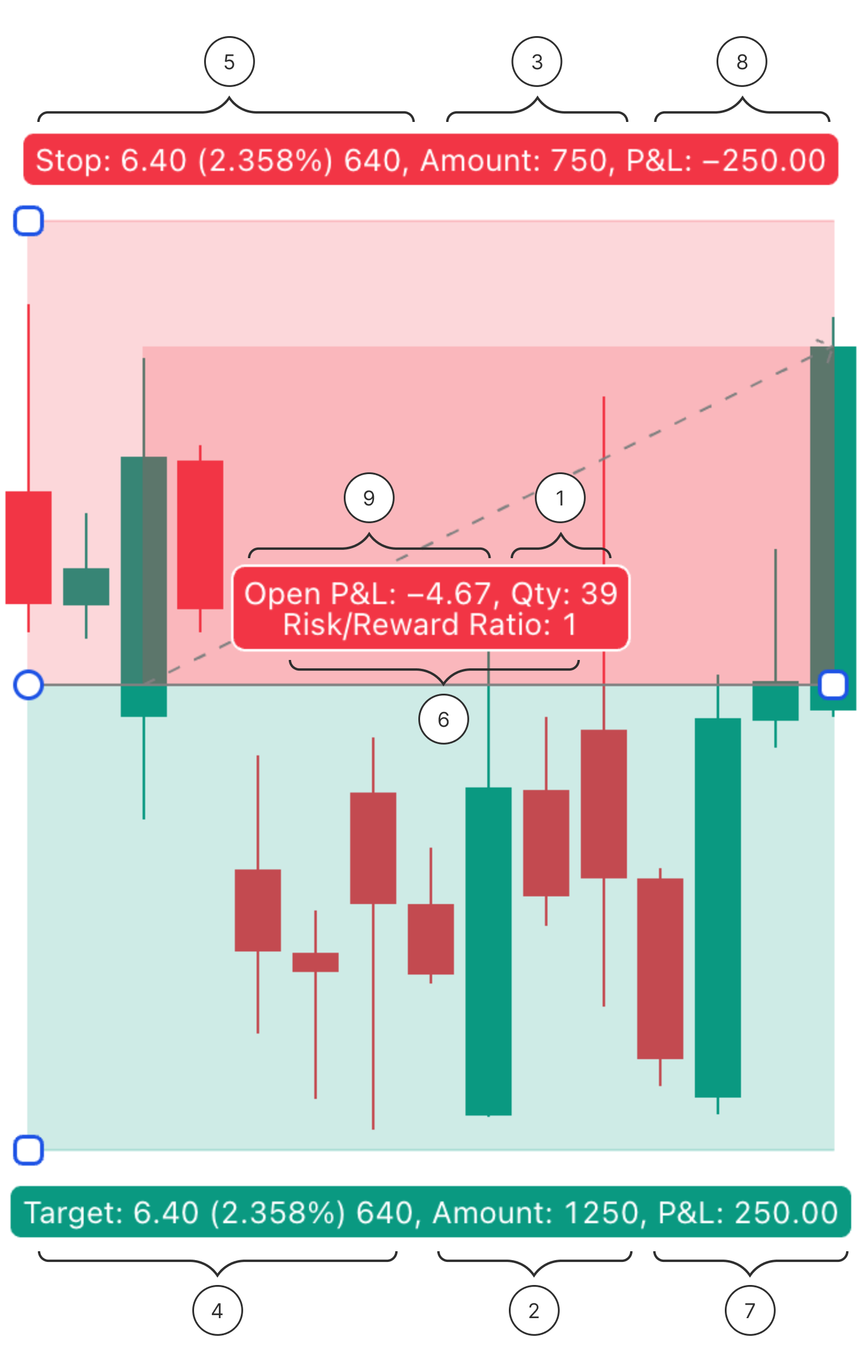
| 1 | Position Size | Qty = min(QtyRisk, QtyLvg), where: QtyRisk = (RiskSize / ((StopPrice – EntryPrice) * Point Value)) / Lot size QtyLvg = (Account size * Leverage / EntryPrice) * Point value / Lot size |
| 2 | Account Balance when the position is closed after reaching the Take Profit level | Amount = AccountSize + (EntryPrice – ProfitLevel) * Qty * Point value * Lot size |
| 3 | Account Balance when the position is closed after reaching the Stop Loss level | Amount = AccountSize — (StopLevel – EntryPrice) * Qty * Point value * Lot size |
| 4 | The target level is showing the difference between the Entry price and the Profit price | TP price offset = EntryPrice - ProfitPrice TP percent offset = ((EntryPrice - ProfitPrice) / EntryPrice) * 100 |
| 5 | The stop level is showing the difference between the Stop price and the Entry price | Stop level (for price) = StopPrice - EntryPrice Stop level (in percentage) = ((StopPrice - EntryPrice) / EntryPrice) * 100 |
| 6 | Risk/reward ratio | Risk/reward ratio = (EntryPrice - ProfitPrice) / (StopPrice - EntryPrice) |
| 7 | Profit P&L — this is the difference by which the amount will increase when the profit level is reached | P&L = (EntryPrice - ProfitPrice) * Qty * Point value * Lot size |
| 8 | Loss P&L — this is the difference by which the amount will decrease when the stop level is reached | P&L = (EntryPrice - StopPrice) * Qty * Point value * Lot size |
| 9 | Open P&L when there are no bars within the Short Position tool area, but the tool itself is placed within the historical data | Open P&L = EntryPrice - PositionRightEdgeClosePrice |
| Open P&L when there are bars within the Short Position tool area, but the entry price level is not reached by any bar | ||
| Open P&L when neither the Take Profit nor the Stop Loss levels are reached by the price within the Short Position tool area | ||
| Closed P&L when the position is closed after the Take Profit level is reached | Closed P&L = TP price offset | |
| Closed P&L when the position is closed after the Stop Loss level is reached | Closed P&L = SL price offset | |
| Open P&L when the Short Position tool is placed in the future, where there are no bars yet | Open P&L = EntryPrice - LastPrice |
- AccountSize — initial account size specified in the settings
- RiskSize =
- Risk, if risk is selected in absolute numbers,
- Risk / 100 * AccountSize, if risk is selected as a percentage of account size.
Display performance in the Compact mode
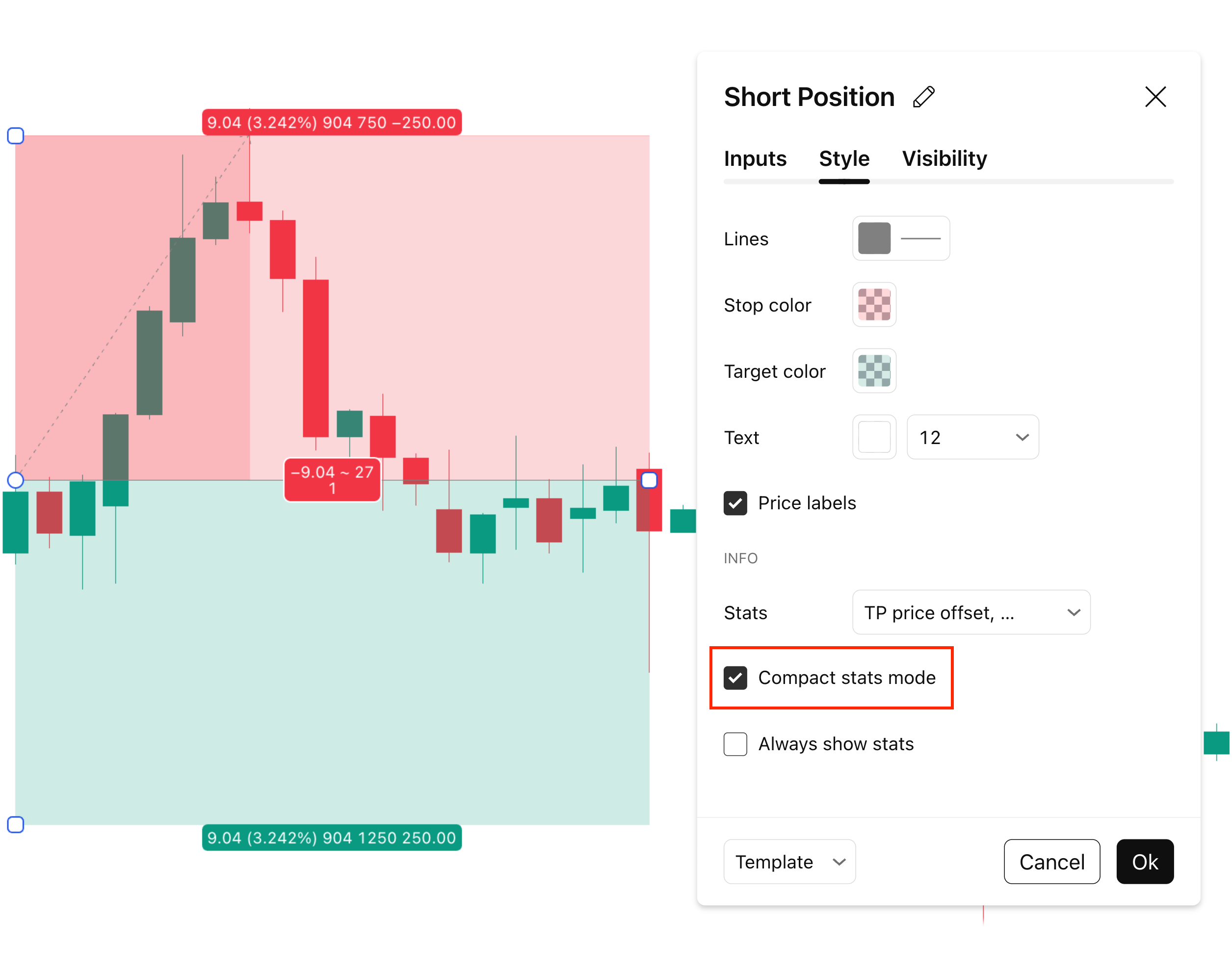
Try using the Compact stats mode if you want the position performance tags to consume less space on the chart. You can enable it by choosing the Compact stats mode checkbox in Settings.
Also read: